Boyum Help Center Help Center home page
Boyum IT Solutions Community Submit a request
Sign in
  1. Boyum Help Center
  2. Beas Manufacturing
  3. Tutorials and Knowledge Base
  4. Web app

How to install web app 2.1

  • Created September 03, 2019 07:53

In this article I'm going to show how simple install web app 2.1

Solution

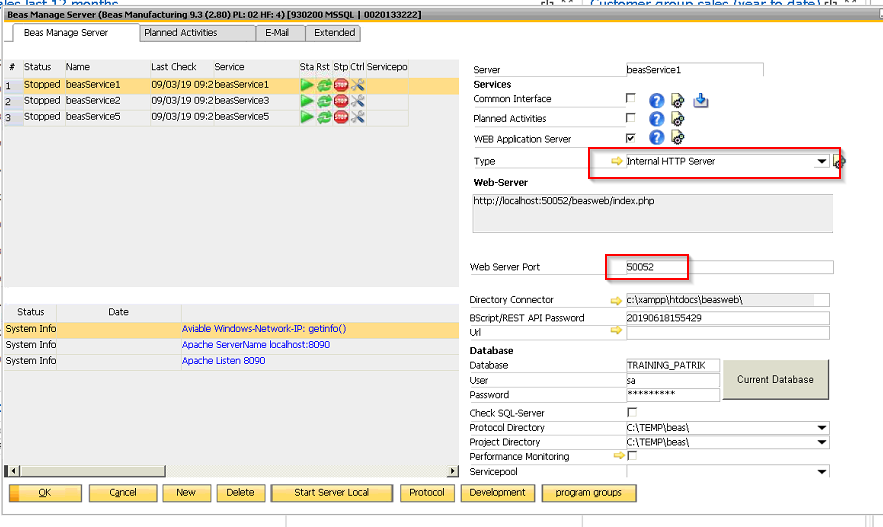
  1. It's mandatory to use Internal HTTP server - this one is only compatible with web 2.1
  2. Define port number (not 8080 or 8081)

mceclip0.png

After that your connection will be:

for old web app

http://127.0.0.1:50052/beasweb/terminal10

for web app 2.1

http://127.0.0.1:50052/beasweb/terminal20

Was this article helpful?

1 out of 1 found this helpful

Related articles

  • Install two beas versions on one machine
  • Auto printing of a delivery in sales issue process
  • Beas Manufacturing 2024.06 (June 2024)
  • Help Center Improvements
  • Beas: Working with the Product Configurator

Comments

0 comments

Please sign in to leave a comment.

Articles in this section

  • Certificate generation for secure HTTP
  • How to record the debug log for the beas web apps
  • Beas 2021.06 can display the printer drivers that are available for the Common Service
  • How to call a custom print script from a beas Web App using the default printer assigned to the location selected when logging in to the Web app
  • How to install web app 2.1
  • Beas: How to print from web app
  • Beas: How to enable backflush option on webapp/terminal time receipt function
  • How to create Program Authorizations groups for terminal or web app
  • Beas: How to Install customized Beas WEB APP
  • Beas: Problem with WEB APP or Common Service
Boyum IT Solutions
Español (Latinoamérica)
Zendesk Theme by Zenplates