Example: print a workorder.rpt file out of the Work Order Structure WIndow
Note: This doesn't work for "Preview", only with "Print"
How to do it?
- In WO window - right mouse click - choose icon printer - layout
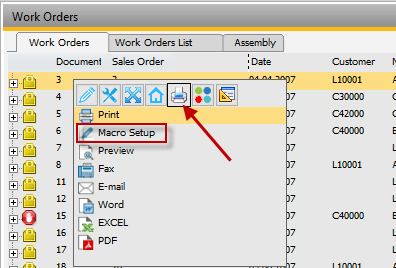
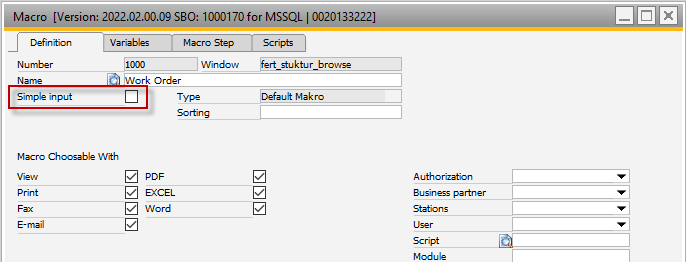
- Create new Macro

- Uncheck parameter Simple input
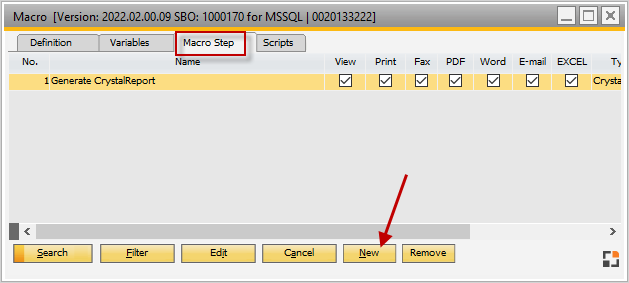
- Go to Tab Macro Steps - add a new step
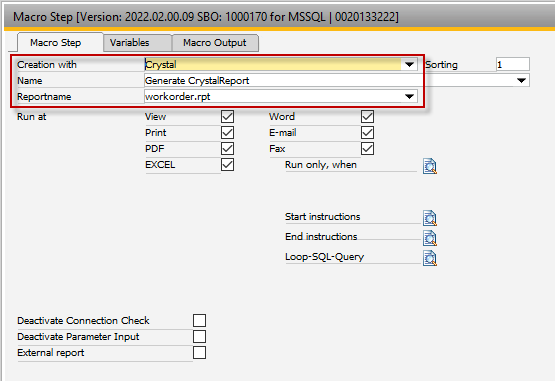
- Here we will configure
- Creation with
- Name
- Report name
- In Macro step switch to tab "Macro Output" - create new
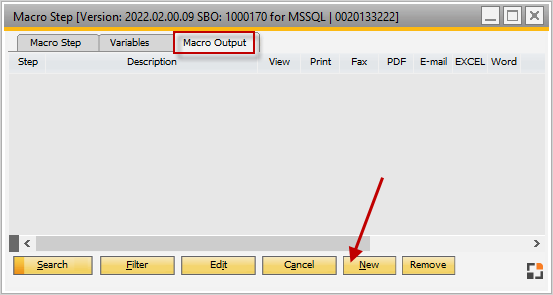
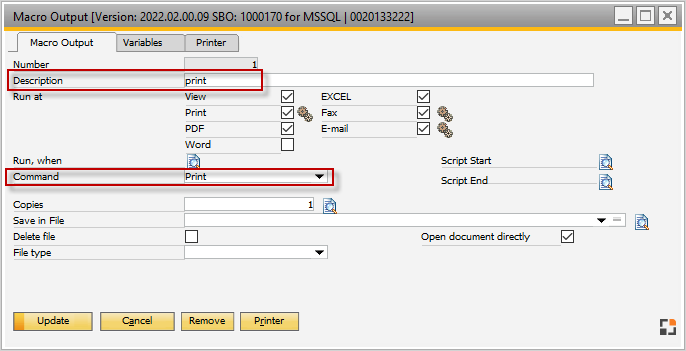
- Here we will create command and variables
- command - print
- Description - print for example
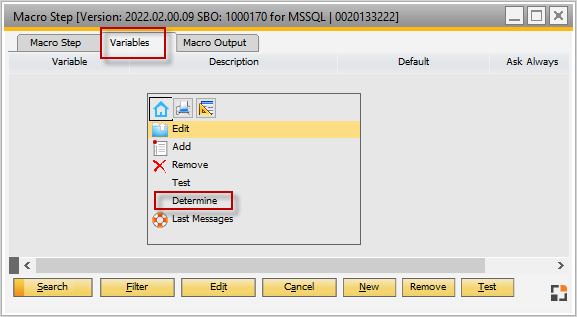
- Tab variables - click on "Determine" in Right-Click-Menu"
- when variables are created then you have to define for each variable
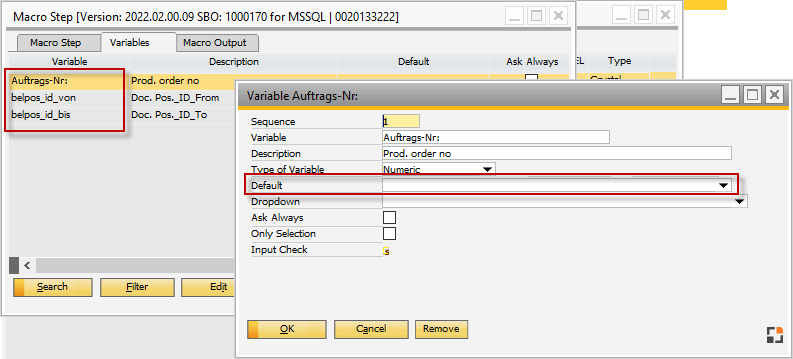
- when variables are created then you have to define for each variable
- Add
- Create 2nd Macro output step
- command - save
- Description - print for example
- File name - insert your path and define manually name
- you can use timestamp for example:
reportname_<today,yyyymmdd>.pdf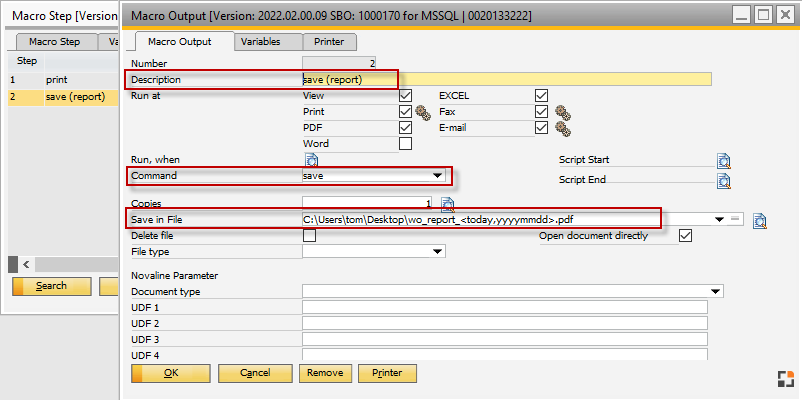
- you can use timestamp for example:
- Add
Comments
0 comments
Please sign in to leave a comment.