The VPS offers various options of adjusting the size of your working area and going directly to a particular place in your diagram.
Adjust the time scale
Increase/reduce time scale solution
Depending on how much detail or summary is required, you can either increase or reduce the time scale solution by mouse wheel within the time scale.
Show orders of a certain timespan only
Click the appropriate item to show either
- all orders of your current workday
- all orders within a week starting from the current work date
- all orders of a month starting from the current work date
Navigating
The VPS offers the following options for quickly navigating to certain positions in the diagram.
Scrolling
- Scrollbars: Use the vertical and horizontal scrollbars to move up/down or left/right through the planning board.
-
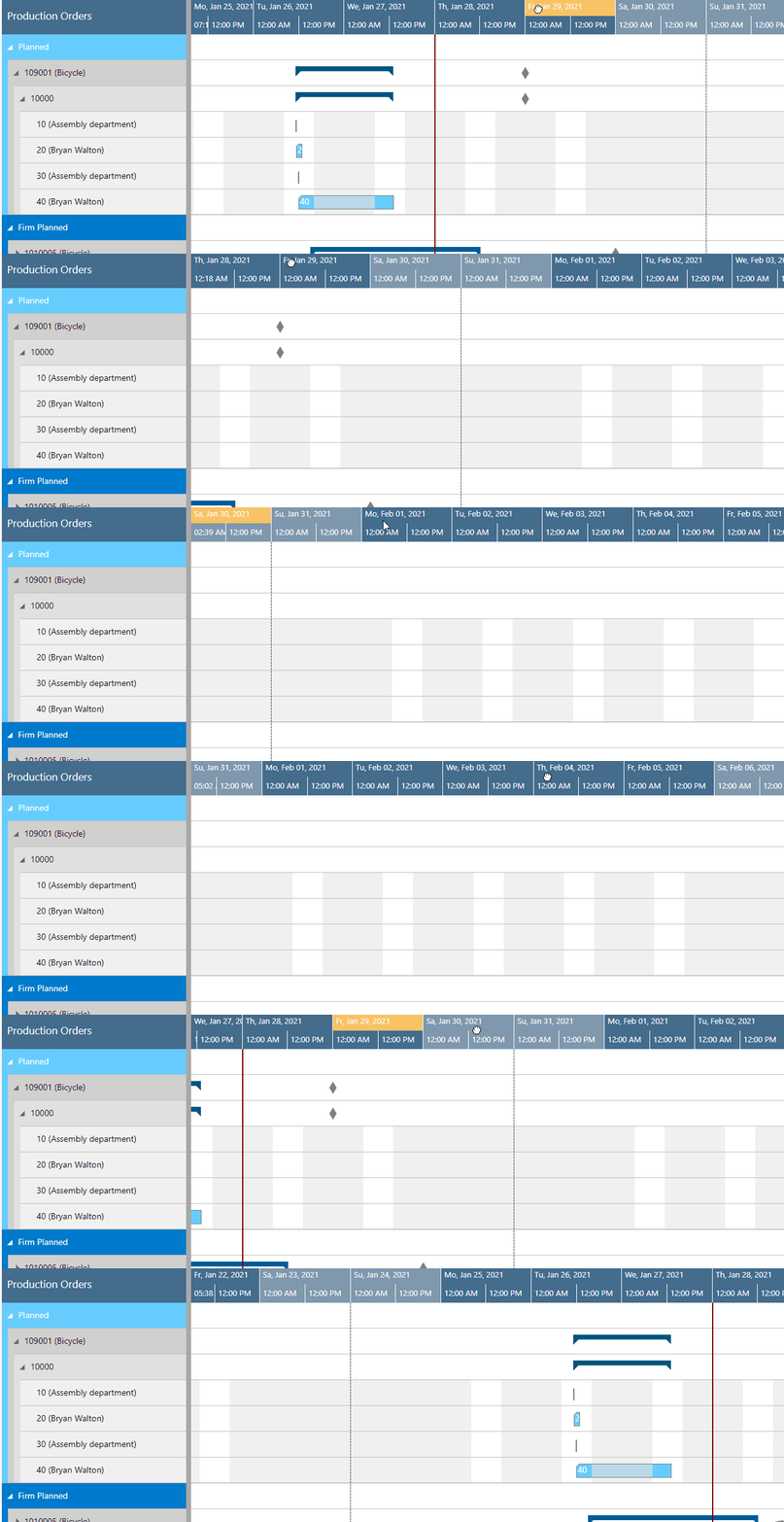
Dragging the Timescale: Click and drag the timescale (at the top of the chart) to scroll the view horizontally. Dragging to the left will show future dates, while dragging to the right will reveal earlier periods.
- Scroll directly to the Dynamics 365 Business Central work date by selecting the corresponding item from the “Actions” menu (see above).
Navigate within one routing
This function allows you to navigate in your plan easily and quickly, especially if you have long routings with lots of operations. It can be found in the "Navigation" entry of the context menu.
Adjust the width ratio between table and diagram
You can modify the width ratio between the table and the diagram by moving the vertical splitter bar between them.
Return to default time range
Select "Fit into view" to switch directly to the timescale as defined in the “Setup” Dialog.
Comments
0 comments
Please sign in to leave a comment.