
2025.12 Release
Tested SAP Business One versions:
- SAP B1 10.0 FP 2502 64-bit MSSQL 2019
- SAP B1 10.0 FP 2502 64-bit HANA 2.00.059.09
Compatibility: This version is compatible with SAP Business One 10
See Compatibility & Previous Versions >>
Summary
In this 2025.12 version, we are excited to introduce some valuable enhancements.
First, we now have the Valid Value Selection Screen. Users can easily select values from a predefined list, making data entry faster, more accurate, and more user-friendly.
Second, we are introducing Image Capture for GRPO documents. Users can now take photos directly during the scanning process and attach them to incoming documents.
As always, we've also dedicated significant effort to thorough bug fixing.
Highlights
Create a Valid Value Selection Screen: Select From List - Documentation
- The Valid Value Selection Screen allows custom Produmex Scan screens to replace free-text inputs with predefined, easy-to-select values. The selection screen can be applied to an existing input field or added as a new field, and is fully supported on both Android and Windows Mobile devices.
The valid value selection screen uses Valid Values to populate the selectable list. The Default Value field specifies which key should be preselected when the screen loads. -
The user can define a default value in one of the following ways:
-
Option A – Manual Default Value
In the Default Value field, you can manually enter the text that should be displayed.
Example: “This is a Default Value"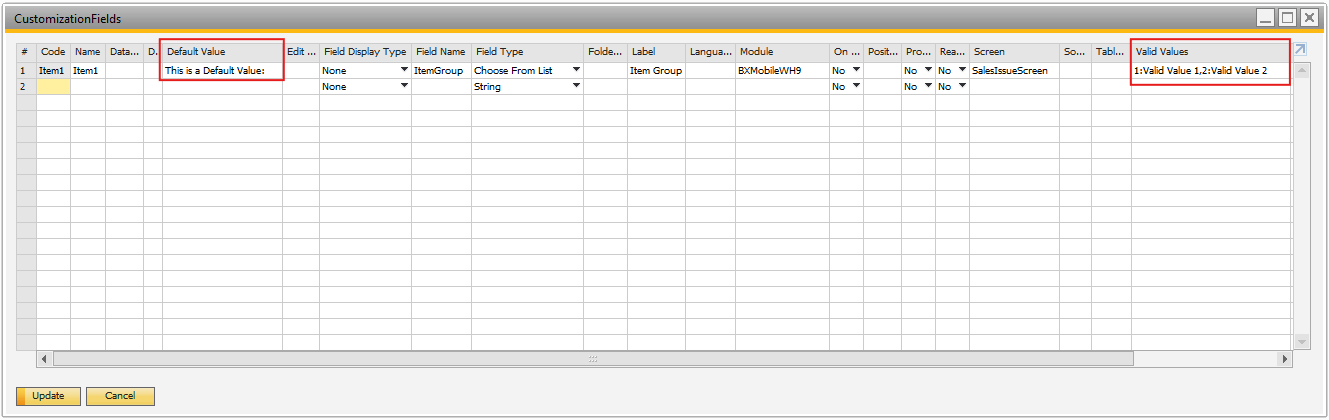
-
Option B – Using a User Query
A default value can be provided using a user query. The query can be the following for example: BXMobileWH9_<SalesIssueScreen>_<ItemGroup>_load_default_value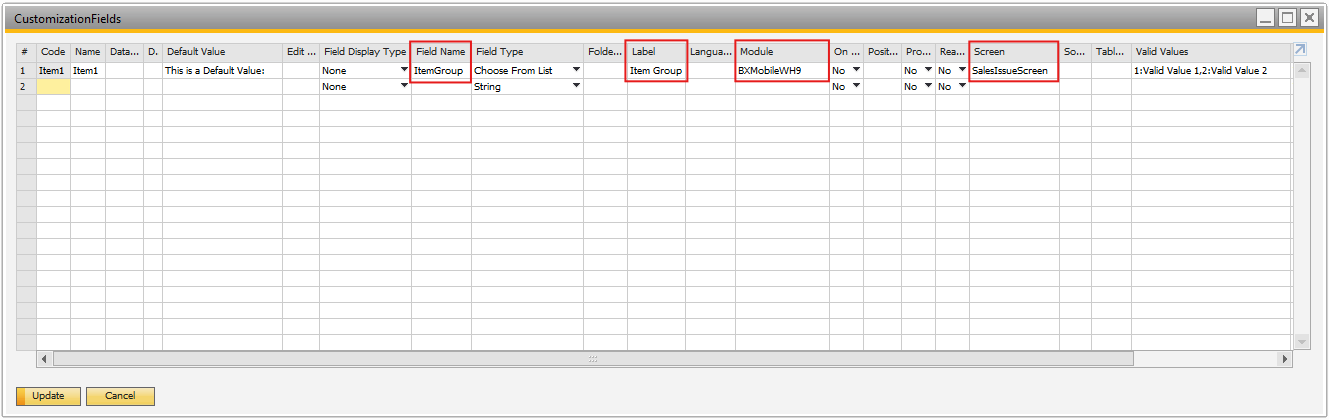
-
Option A – Manual Default Value

Capture GRPO Images: Add images to GRPO documents - Documentation
- The Image Capture allows Produmex Scan to attach photos directly to incoming logistics documents such as Goods Receipt PO and Sales Return.
When enabled, users can take one or more pictures directly from the scanning flow. Images are validated, saved to SAP’s attachment path, and linked to the document line. -
Supported document flows:
- GRPO
- Free GRPO
- Sales Returns (SDN and SRR)
-
The Image Capture process has three major steps:
- When a picture is taken, it is stored in the device’s memory.
- When the entry is created, the image is saved to the database.
- After the document is posted, the image is saved as a JPG file in the attachments folder and then it will be removed from the database.
- Once the document is posted, the physical file is saved under SAP General Settings → Path for Attachments. The file name is generated using the defined template, and Produmex Scan stores the final file path in its internal tables.
Documentation site:
Produmex Scan 2025.12 Documentation > >
Useful Links & Additional Information
-
PMX Scan Release Note site - Produmex Scan Release Notes >>
You can keep yourself informed by checking out these sites for news and detailed information related to Produmex Scan.
-
PMX Scan Article site - Produmex Scan - Boyum Help Center (boyum-it.com) >>
Follow our helpful articles and detailed examples for everyday use.
-
PMX Scan Roadmap site - Logistics (notion.site) >>
For upcoming new features, keep open eyes on our Roadmap.
If you have any questions or comments, please do not hesitate to contact us!
Next planned version: 2026.04 version will be released in April.
(This is the current state of planning and may be changed by Boyum IT Solutions at any time.)
Comments
0 comments
Article is closed for comments.