The VAPS offers various options of adjusting the size of your working area and going directly to a specific position in your plan.
Adjust the time scale
Depending on how much detail or summary is required, you can either increase or reduce the time scale solution by mouse wheel or touch pad.
Show operations of a certain timespan only
Click the according item to show either
- all operations of your current work day
- all operations within a week starting from the current workdate
- all operations of a month starting from the current workdate
Scrolling
The VAPS offers the following scrolling options for quickly navigating to specific positions in the diagram:
- the common scrolling options by vertical and/or horizontal scrollbar
- dragging the timescale either right or left by mouse
- scroll directly to the Dynamics 365 Business Central work date by selecting the corresponding item from the “Actions” menu.
Navigate within one routing
This function allows you to navigate in your plan easily and quickly, especially if you have long routings with lots of operations. It can be found in the "Navigation" entry of the context menu.
Adjust the width ratio between table and diagram
You can modify the width ratio between the table and the diagram by moving the vertical splitter bar between them.
Return to default time range
Select "Fit into view" to switch directly to the timescale as defined in the simulation's settings.
Search function
In both views, you can search for certain production orders:
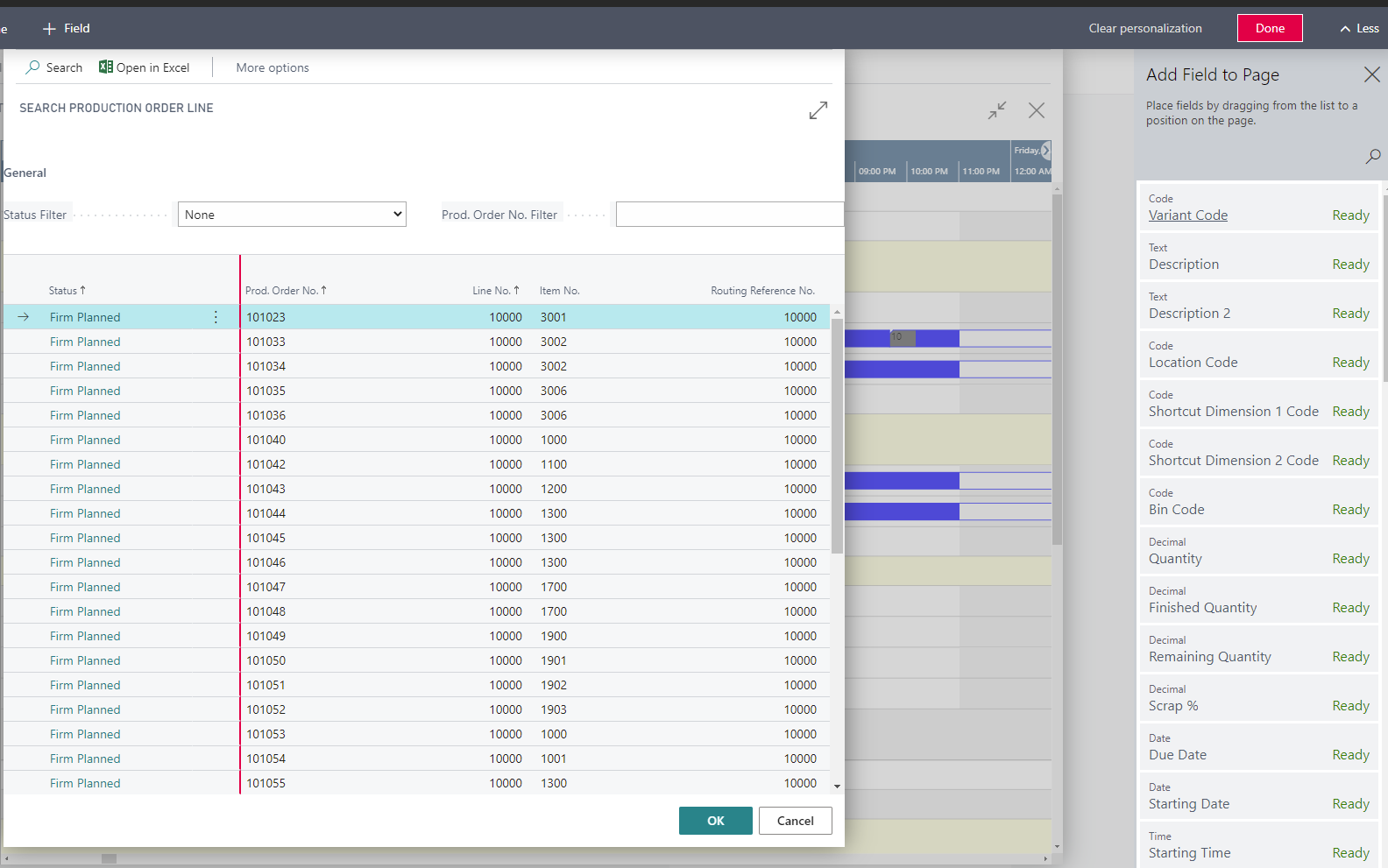
- In the Capacity View, users can search for production orders and production order lines.
- In the Sales Order View, users can search for sales orders and sales item lines.
-
- The search dialogs can be personalized the same way as is known from Business Central by adding columns in the fields list.
Comments
0 comments
Please sign in to leave a comment.