In this article I'm going to show you correct Beas configuration which you should use
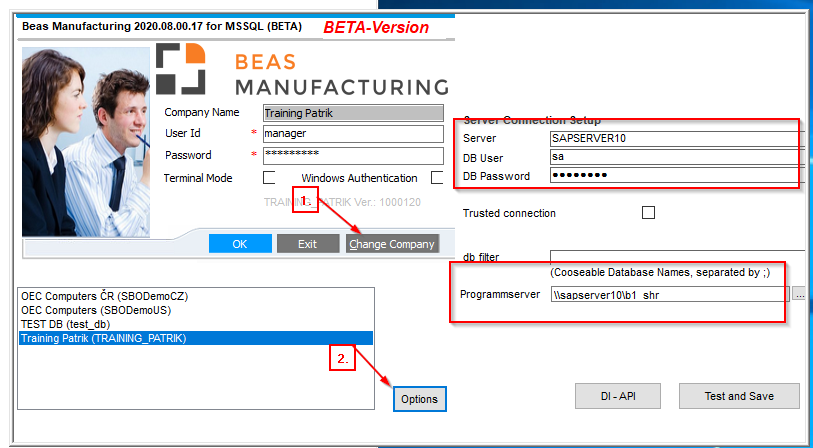
start Beas standalon - change company - options
"Server" = here has to be your server name or IP address - it depends on your SLD
DB User and pwd = this is a database user - SQL server or HANADB
Programmserver = this is for clients workstations, Beas is going to be installed here in the shared network folder too and then you can easily install Beas client with clientsetup.exe on each workstation you need
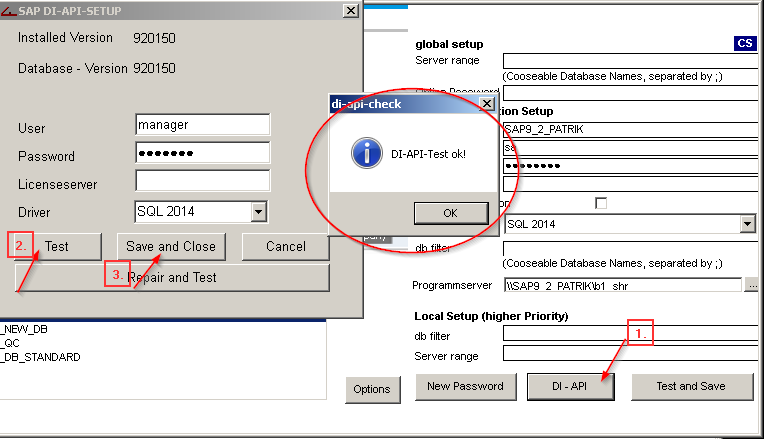
Click on DI-API button
Here is used SAP user which has Superuser rights
Click on "Test" when test is ok click "Save and Close"
what is password ? i dont kown it where configuration in Beas, after install beas, i run beas it have password. how to reset it or disable it, Thanks Team
Comments
1 comment
what is password ? i dont kown it where configuration in Beas, after install beas, i run beas it have password. how to reset it or disable it, Thanks Team
Please sign in to leave a comment.