In this article you can find an overview about the printing configuration of Produmex Scan and some typical issues regarding this.
You can also find a very detailed description in our WIKI documentation:
Produmex Scan Printing WIKI document
Defining the Layouts
You can define the layouts at Administration>Setup>Inventory>Produmex Scan>Printing Layout Sets.
On the Printing Layout Sets form you can define which layout files should be used for the specific labels at printing.
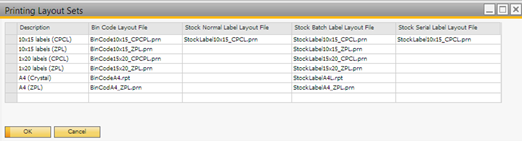
Define the path to the report files at the Report Layout Folder setting on the Reports tab of Produmex Scan settings. It is recommended to use a network folder.
It is also possible to define an output folder for reports at the Report Output Folder setting on the Reports tab of Produmex Scan settings.
Layout formats
Crystal Reports (rpt files)
Zebra ZPL files (or CPCL files)
Setting Up Printers
To set up printers navigate to Administration > Setup > Inventory > Produmex Scan > Printers Setup.
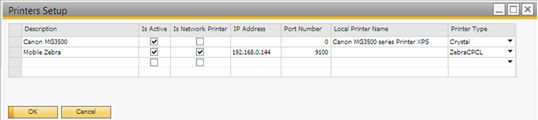
Both local and network printers can be configured.
To configure a local printer:
- Uncheck checkbox ‘Is Network Printer’.
- Enter the name of the printer to the Local Printer Name field.
To configure a network printer:
- check the ‘Is Network Printer’ checkbox.
- Fill in the IP Address and the Port Number fields.
If the network printer type is Crystal:
Fill in the Local Printer Name field.
Please note: The Printer Type column is actually the layout type. If you are working with Crystal Reports layout, then you have enter the text Crystal in the “Printer Type” column.
If the network printer type is Zebra:
Enter the IP address
Typical issues
Issue: The printing happens on the default Windows printer.
If the network printer type is Crystal, fill in the Local Printer Name field,
If an incorrect local name is provided, the system displays an error message.
You cannot print/label won’t be printed on a PDF printer
In case of network printers, Local System users usually do not have the right to print, therefore, make sure that in the Run As User setting of the Produmex Service Broker you indicate a user who has printing rights.
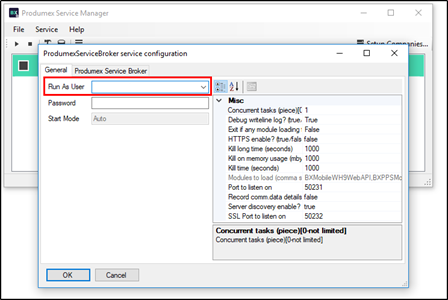
Try to start ProdumexServiceBroker in console mode.
Additional information
You can find the typical printing issues and solutions in the WIKI:
http://wiki.produmex.name/doku.php?id=implementation:scan:supportguide:printing
Comments
4 comments
István Molnár How do select the different layout set when printing from the scanner? I do not see an option here.
Dear Ross Cawood,
Not possibe to select different layout.
You can add the same printer twice with different name and you can define the two layout for these printers.
Thanks István Nokta any idea why this option is there then?
Dear Ross,
There are other Produmex products (Manufacturing, Operator) and this function is used by them.
Please sign in to leave a comment.