Alllow SSCC to be selected from list when recommencing Ad Hoc Picking Answered

Let's say we are ad-hoc picking an order in Produmex WMS. We partially pick it on to two pallets but don't complete the second pallet and leave some lines open to complete later. At this stage no ticket has been printed for second pallet as we have not completed the order and not hit "SSCC full". If we then come out of the order to do something else, then return to the order, the user is asked which pallet they are picking to.
A list is presented of available SSCCs, so common sense would suggest you can just select the list item for the pallet you want to continue picking to and click next. However system enforces that you scan a ticket, but this ticket HAS NOT BEEN PRINTED by Produmex, so you are stuck!!! There is no configuration option to avoid forcing the SSSC scan at this stage
Unfortunately, only work around here seems to be to manually print a Goods Receipt template ticket via Checks option within application menu but ultimately it is really bad UX as it is time consuming / awkward to do this, and in any case it is the wrong document template used. You should simply be able to select the pallet on the screen to continue picking and then print the correct Sales order pallet ticket through the normal process.
Alternatively, i guess if leaving the picking flow with a unprinted label you could force the ticket to print at that stage. But simply selecting from the list (which the application should clearly easily support) would be the simplest option.
Comments
5 comments
First Thanks always Francine for your active help.


The original idea was to insert by default the last SSCC created for the picklist at the Select Customer LU screen. This would allow the operator to simply press the forward arrow to keep picking on the same SSCC, scan another if needed, or create a new one with the button. Unfortunately, this is not possible in the current product because the picklist number (wave) is not available on the terminal screen. The framework only exposes values defined in
ListColumns(current screen) andListColumns2(previous screen), so the system cannot determine which SSCC is the latest one created for a given picklist.That said, as part of an improvement to the customization framework planned for early 2026, the 20 most representative values for each flow will become available as global variables (and of course, the picklist/wave number will be included for picking flows). So from 2026 onwards, you’ll have no excuse not to leverage the customization framework for your scenarios!
Best workaround with Customization Framework
What I recommend is to leverage the customization framework to automatically insert the last SSCC created for the business partner as the default value at the Select Customer LU screen. In that way:
If the operator wants to continue on the same pallet, they just need to press the forward arrow.
If they want to use another SSCC, they can still scan it.
If they want to start a new pallet, they can press New Logistic Unit.
Since the picklist number is not available to the terminal, we cannot filter directly by picklist. Instead, we implemented the following customization steps to approximate this behavior:
We created a query
LastSSCCas List Event: SELECT 'SSCC desc' as "Sort"This ensures that the most recently created SSCC appears at the top of the list.
With this order in place, the top item (e.g. SSCC
1236) is automatically preselected (highlighted in blue). This also sets the variable: $[SelectedRowlblMasterSSCC]=000000000000001236Finally, we assign this value as the default txtBarCode in the Load Event using query
SelectedSSCCasDefault: SELECT '00' + '$[SelectedRowlblMasterSSCC]' AS "txtBarCode"Result
With these two small customizations:
The last incomplete SSCC (e.g.
000000000000001236) is automatically preloaded as the default value.The user only needs to press Forward to continue picking on the same SSCC.
UX is greatly improved because the operator is no longer “stuck” without a printed ticket, and no manual ticket printing is required.
Attached screenshots illustrate the difference between the standard screen and the customized behavior after steps 1 and 2.
BEFORE
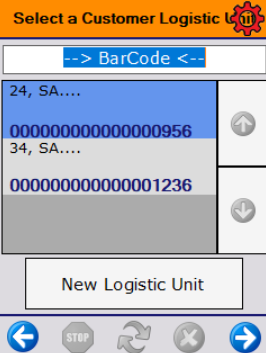
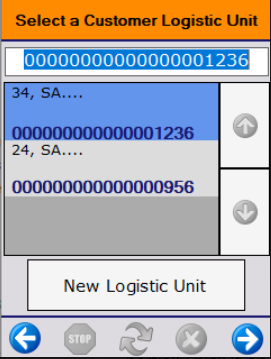
AFTER
Hello Boyum Team,
This does not happen only for ad-hoc picking, for any standard picking where you interrupt the process. The issue is that it is not manageable, not having a barcoded label with SSCC at that point of picking requires the picker to manually enter the 18 char code which is prone to errors.
Thank you.
Regards,
Cristian (Vision33)
Hi Martin&Chris,
This is a very physical oriented discussion what I like and shows the knowledge of the software that you already possess.
On similar cases what I advice is to select the last SSCC of the list, the higher number of the SSCC the later it was created. In rare cases where there are many pickers working for the same customer (then the last SSCC you were picking on may not be the last of the list cause other picker may generate one after you did) I add the pick list number to the "select SSCC" screen, then you know that you need to keep picking on the higher SSCC number from your pick list and no need of printing the label until it is not finished.
Miguel Oscar Lozano
Here is another example of this issue, from 3 years ago.
The issue isn't so much getting the correct SSCC to pick on but to be able to select it and click forward as opposed to scan it.
Hi,
In any case, if you want to leave the picklist you are working on, you can select the next item to pick, go to Other Tasks, say the SSCC is full. This will trigger the printing of a "temporary" label. You can get out of your picklist without completing the pick.
When you get back to your picklist, you will have an SSCC number to scan and when you really complete that SSCC, you will have your final shipping label with the right count on it.
Hope this helps.
Please sign in to leave a comment.