Transparent pictures as overlay show correct in preview and print but not when exported to PDF Answered

We have created a layout (Label) in Crystal Reports and added pictures in this report. The pictures are square but within there is a diamond shape, which means that the edges are white.
This Crystal Report (Label) is send by e-mail using Print & Delivery. So sending it works fine.
As the pictures need a overlay we saved these pictures as .wmf files (seems one of the solutions to get this done by using .wmf files). You can use .emf files as well.
We also selected the option File - Report Options - Retain original image color depth to see if this would make any difference, but no result.
This is the issue:
When using these .wmf files everything looks fine, using Crystal Reports, when you do a preview or print the layout.
But when you export this Crystal Report to a PDF the white edges of the picture are shown again. So this also happens when this Crystal Report (Label) is send by e-mail using Print & Delivery. It creates a PDF of the label and the white edges of the pictures are visible.. 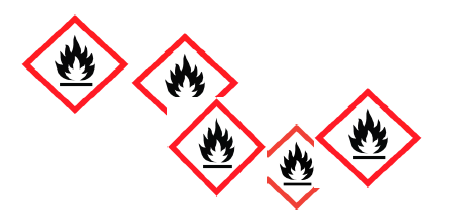
We have been looking for a solution, but somehow this seems to be behaviour when exporting to a PDF.
Question is, has anyone had this issue as well and how did you solve it?
Comments
2 comments
Hi Tim.
I think this question more belongs to a Crystal Report Forum than the B1UP Q&A as the issue is Crystal Specific. So you might have more luck finding an answer there. Personally, I do not know then answer (might simply be a limitation of PDFs or Crystal's PDF Export feature)
Hello Rasmus,
Thanks for the reply. We asked the question on a Crystal Report Forum as well. As you mentioned it seems to be a limitation when export a Crystal Report to a PDF.
But when you print the same Crystal Report to a PDF printer it works fine. Something we want to try is to save the Crystal Report with e.g. the ordernumber in the filename. By using SQLMulti in the Additional attachments within a Report Action attach that file, so it will be send by e-mail the correct way.
Please sign in to leave a comment.