BEAS 9.3 PL3 does not have created Beas.ini Respondida

We are installing the latest release in SQL Standard 2017 and SAP HANA. Version SAP B1 9.3 PL10.
In both cases the error to charge the add-on is the same, how you can to see in below images.

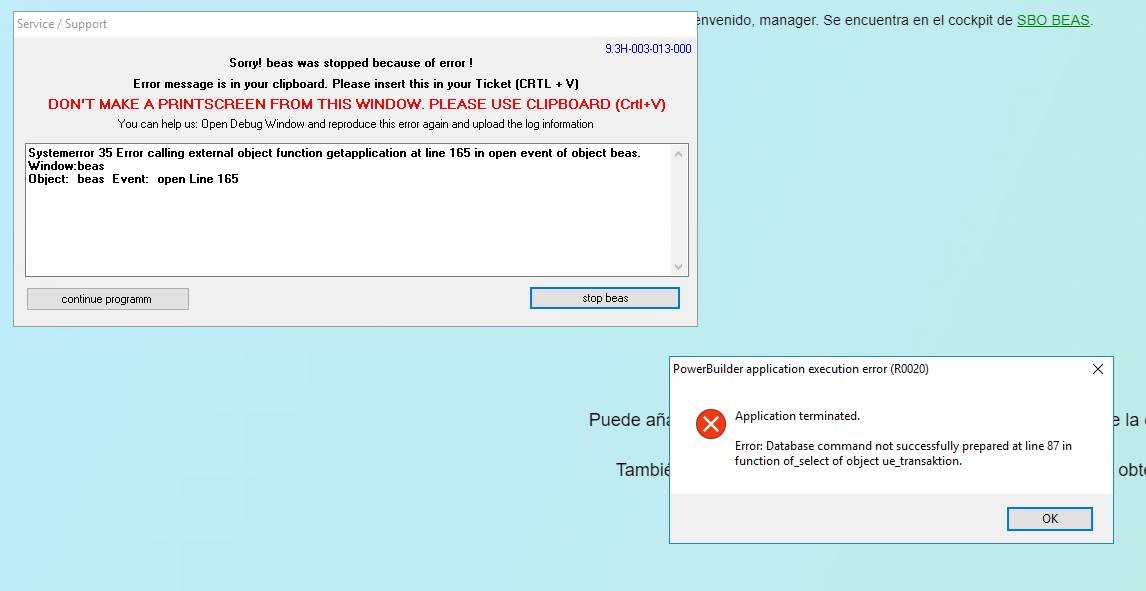
We have already check for the following:
• Always use the latest version of SAP B1/Beas Version
• Disable any Anti Virus program you may have and check again
• Check if your window system version is supported by SAP
• Set UAC to minimal
• Disable Firewall
• Check if you have a valid SAP B1 license
• Check if you can start Beas without SAP (double click on Beas Icon on Windows Desktop)
In the below article mentioned that the solution should will be modifiy the field beas.ini
https://support.boyum-it.com/hc/en-us/articles/360001479747-Beas-can-t-connect-to-SAP-Beas-ini
But the problem is the add-on don´t install and beas.ini don´t have created.
The same behaviour in SQL and HANA
Any idea?
Comentarios
2 comentarios
Hello Alvaro,
Thank you for your post, since this case requires more analysis please contact your local Partner.
Start the beas.exe (either from it's Desktop Icon or from C:\Program Files (x86)\beas software\beas) as Administrator and enter the Server Connection data.
By pressing 'Test and Save' the beas.ini will be created in C:\ProgramData\beas, and it will create a copy in \\SERVERNAME\b1_shr(f)\beas software\Conf.
Afterwards, you should be able to start the Beas AddOn in SAP just fine.
After, apply the below article,
https://support.boyum-it.com/hc/en-us/articles/360001479747-Beas-can-t-connect-to-SAP-Beas-ini
At last, check the below valid combination:
- SAP Client 64 Bit + SAP DI API 64 Bit + SAP DI API 32 Bit + Beas
or
- SAP Client 32 Bit + SAP DI API 32 Bit + Beas
If you have the 32 and 64 Bit Client installed at the same time, beas will not start correctly.
See http://www.beascloud.net/docs/help/online_eng/index.html?installationsanleitung.htm > Installation on a client
Iniciar sesión para dejar un comentario.