Golden arrow(B1up) open beas screen Respondida

Hello,
I'm trying to make a golden arrow opens a beas screen (resources). I've checked the online manual but it only show me how to customize it to open b1 native screens, via macro.
Can anyone tell me how to link a golden arrow to a beas screen? Would helpm e a lot.
Comentarios
1 comentario
Hi Sergio
Thank you for writing us.
Yes it is possible to link a golden arrow to a beas screen. You will need to combine the beas B1UP functionality with standard B1UP functionality.
I have created a guide below where a golden arrow is created for a field in the extended master data and is configured to open the beas screen “Resource Master Data”.
In this example the Uid is: 4372
Go to:
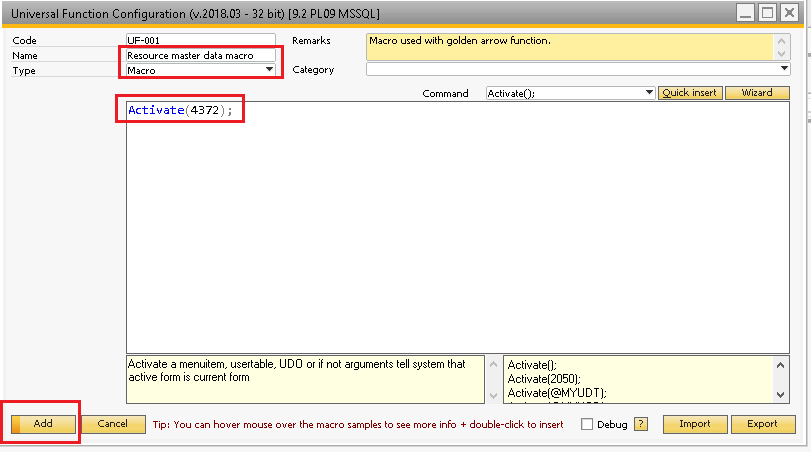
Administration - Add-Ons - B1 Usability Package - Module Configuration - Universal Function - Universal Function Configuration:
Go to add mode:
Name: Give the macro a name
Type: “Macro”
Command Window: Activate(4372);
Open “Edit Item Placement Tool Configuration” (Right click somewhere on the screen, select the configuration icon and then “Edit Item Placement Tool Configuration”)
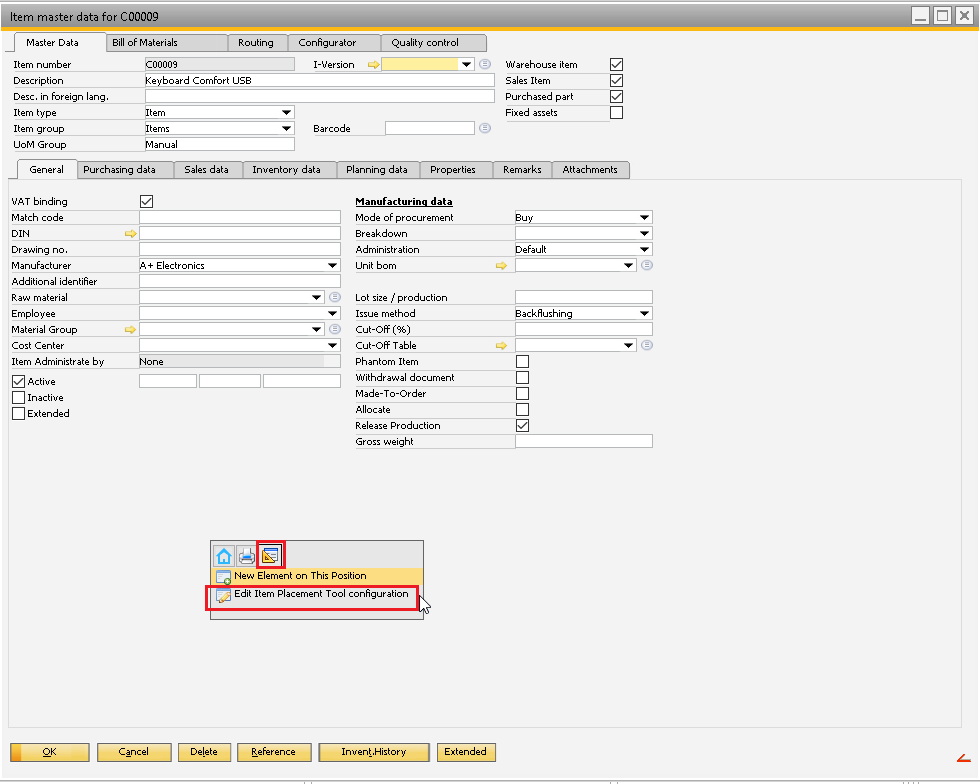
Click on “Line Add”
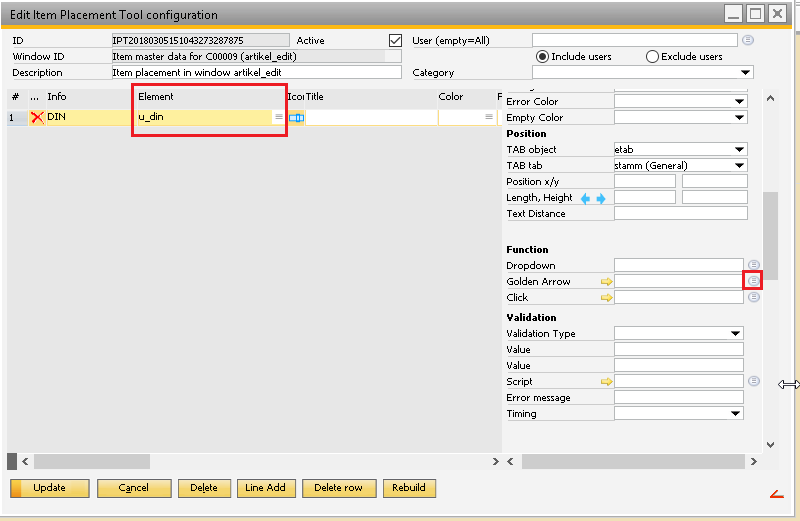
Select the field/element that you want to add the golden arrow to. In this case I have selected “u_din” from the dropdown in the “Element” column
In the right side column click the “List” button to the right of the “Golden Arrow” field
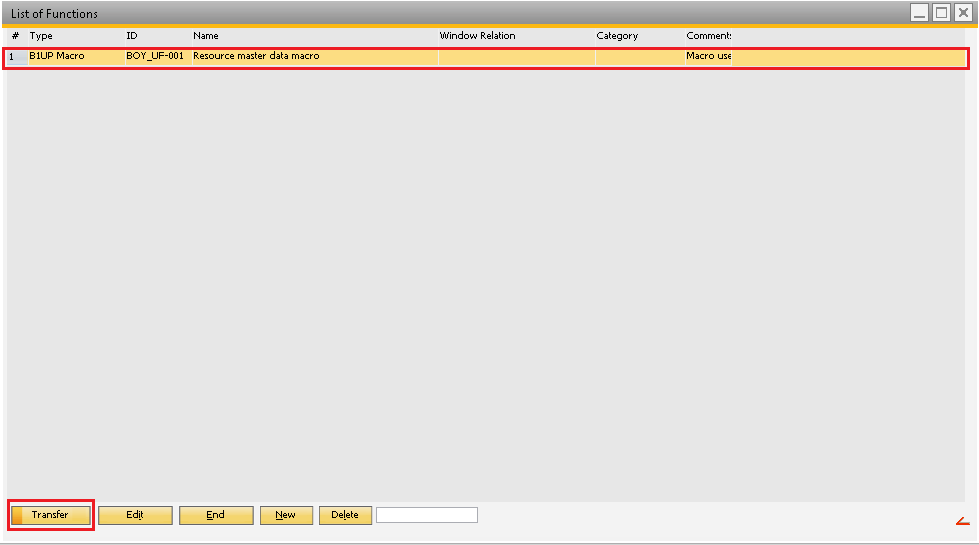
When the “List of Functions” screen pops up then select the function you just created and click “Transfer”
In the “Item master data for xxxxxxxx” window click “Update”

Now you should be able to see the golden arrow you just created.
Iniciar sesión para dejar un comentario.